Multi-Tenancy
How ThreatSabre multi-tenancy works for MSSPs and enterprises, including tenant management, organisations, user permissions, groups, and cross-tenant sharing.
ThreatSabre's multi-tenancy system lets you create separate organisations for each of your customers, manage user access and permissions across those organisations, and selectively share organisations with other tenants when you need to provide controlled external access.
Table of Contents
- Accessing Tenant Management
- Core Concepts
- Roles
- How Permissions Work
- Feature Areas
- Key Rules and Constraints
Accessing Tenant Management
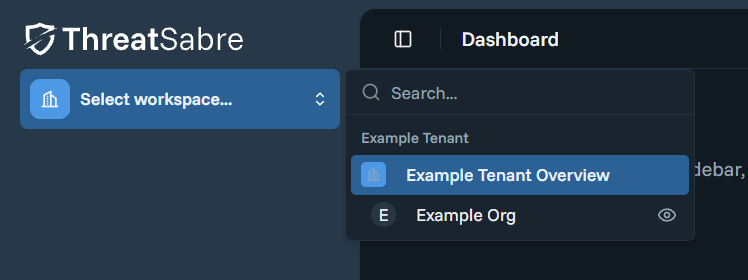
To access tenant management, workspace menu and select Tenant Overview.
Core Concepts
The platform uses a tenant-based model where:
- A tenant is the top-level container for your account. All your users, groups, and organizations belong to a tenant.
- Organizations are the primary workspace unit. Each organization is owned by exactly one tenant and contains your business data (devices, agents, etc.).
- Users are members of one or more tenants. Their access to organizations is determined by the groups they belong to.
- User groups are named collections of users within a tenant. Groups are assigned to organizations with a specific permission profile, granting all group members the corresponding level of access.
Hierarchy
Tenant
├── Members (users with roles)
├── User Groups
│   ├── Group Members (subset of tenant members)
│   └── Organization Assignments (organization + permission profile)
├── Owned Organizations
└── Shared Organizations (received from other tenants)
Roles
Every user in a tenant is assigned one of three roles, each with increasing privileges:
| Role | Description |
|---|---|
| Member | Basic access. Can access organizations assigned to them within the tenant but cannot perform administrative actions. |
| Admin | Can manage members, groups, organizations, and invitations. Can initiate sharing workflows — including creating, viewing, and revoking sharing codes, viewing shared organizations and incoming shares, removing incoming shares, and viewing allowed profiles. Cannot complete the sharing handshake or make high-impact sharing changes. |
| Owner | Full control including all Admin capabilities, plus: assigning the Owner role to others, validating and redeeming sharing codes, unsharing organizations from other tenants, setting allowed permission profiles on shared organizations, and managing billing (coming soon). |
What Each Role Can Do
| Action | Required Role |
|---|---|
| Access assigned organizations | Member, Admin, or Owner |
| Manage members, groups, organizations, invitations | Admin or Owner |
| Assign or revoke the Owner role | Owner only |
| Create, view, and revoke sharing codes | Admin or Owner |
| View outgoing and incoming shared organizations | Admin or Owner |
| Remove incoming shared organizations | Admin or Owner |
| View allowed profiles on shared organizations | Admin or Owner |
| Validate sharing codes | Owner only |
| Redeem sharing codes | Owner only |
| Unshare organizations from another tenant | Owner only |
| Configure allowed profiles on shared organizations | Owner only |
| Manage billing (coming soon) | Owner only |
How Permissions Work
Access to data within an organization is determined by a chain of assignments:
User
 → Tenant Membership (which tenants do you belong to?)
 → Group Membership (which groups are you in?)
 → Group–Organization Assignments (which organizations, with what permission profile?)
 → Permission Profile (what actions can you perform?)
Tenant roles (Owner, Admin, Member) control who can administer the tenant itself. Permission profiles control what users can do inside each organization they have access to. These are two separate layers of access control.
Feature Areas
Tenant Management
Admins and Owners can view and update tenant details such as the tenant name and settings.
What you can do:
- View a summary of your tenant including name, settings, member count, and organization count
- Update the tenant name and settings
Organization Management
Admins can list existing organizations and create new ones under the tenant.
What you can do:
- View all organizations owned by your tenant, including member and device counts
- Create new organizations
Good to know:
- Member counts reflect how many unique users have access via group assignments.
- Organization counts include both owned and shared organizations.
Member Management
Admins can manage which users belong to the tenant and what role they hold.
What you can do:
- View all tenant members with their profile information, role, and group assignments
- Add users to the tenant with a specific role
- Update a user's role
- Remove a user from the tenant
Good to know:
- Only Owners can assign the Owner role.
- The last Owner of a tenant cannot be removed or demoted.
- Removing a user from the tenant automatically removes them from all groups within that tenant.
User Groups
Groups are how you connect users to organizations. Instead of assigning permissions to individual users, you add users to a group and assign the group to organizations — making it easy to manage access at scale.
What you can do:
- View all groups in the tenant with member and organization assignment counts
- Create a group with a name and optional description
- View group details including members and assigned organizations
- Update a group's name, description, or active status
- Delete a group (this removes all its members and organization assignments)
Assigning Groups to Organizations
This is the core mechanism that grants users access to organizations. When you assign a group to an organization with a specific permission profile, every member of that group receives the corresponding level of access.
What you can do:
- Assign a group to an organization with a chosen permission profile
- Change the permission profile on an existing assignment
- Remove a group from an organization
- View all group assignments for a specific organization
Good to know:
- The organization must be accessible to the tenant (either owned or shared with you).
- For shared organizations, the permission profile you assign must be one that the owning tenant has allowed.
Permission Profiles
Permission profiles define what actions users can perform within an organization (for example, reading device data or managing users).
What you can do:
- View the available permission profiles for a specific organization
Good to know:
- For organizations you own, all profiles are available.
- For shared organizations, the available profiles are limited to those permitted by the owning tenant.
Sharing Organizations Across Tenants
Organizations can be shared between tenants using a code-based workflow. This allows one tenant (the owner) to grant another tenant controlled access to their organizations.
How It Works
-
The owning tenant generates a sharing code
- Codes expire after 1 hour and can be revoked before use.
-
The receiving tenant validates the code
- This reveals the identity of the sharing tenant so you can confirm before proceeding.
- A tenant cannot redeem its own code.
-
The receiving tenant redeems the code
- You select which of your organizations to share.
- You can optionally restrict which permission profiles the other tenant may assign.
-
The owning tenant manages shared access
- View which organizations are shared and with whom.
- Update or restrict the permission profiles available to the receiving tenant.
- Unshare an organization at any time (this revokes all related group access).
-
The receiving tenant manages incoming shares
- View organizations shared with you, including who shared them and what profiles are available.
- Assign your groups to shared organizations (subject to any profile restrictions).
- Remove an incoming shared organization if you no longer need access.
Sharing Code Statuses
| Status | Meaning |
|---|---|
| Active | The code is valid and can be redeemed. |
| Redeemed | The code has been successfully used by another tenant. |
| Revoked | The code was manually revoked by the tenant that created it. |
| Expired | The code has passed its 1-hour expiration window. |
Inviting Users
Admins can invite new users to the tenant by email.
What you can do:
- View all pending invitations
- Send an invitation to an email address with an optional role
- Cancel a pending invitation
How invitations work:
- An Admin or Owner creates an invitation by specifying an email address and optional role.
- If the email belongs to an existing platform user, they receive a notification to view the invitation.
- If the user is new to the platform, an account is created for them and they receive a link to log in.
- Invitations expire after 7 days.
Good to know:
- Only Owners can invite users with the Owner role.
- You cannot send duplicate invitations to the same email address.
- You cannot invite someone who is already a member of the tenant.
- Enterprise SSO users are provisioned through IdP group mappings, not this invite flow. See Enterprise SSO.
Key Rules and Constraints
Tenant Ownership
- Every tenant must have at least one Owner at all times.
- The last Owner cannot be removed or have their role changed.
Organization Ownership
- Each organization is owned by exactly one tenant.
- Only the owning tenant can share an organization with other tenants.
Group Membership
- A user must be a member of the tenant before they can be added to any group within that tenant.
- Removing a user from a tenant automatically removes them from all groups in that tenant.
Sharing Code Security
- Sharing codes expire after 1 hour.
- A tenant cannot redeem its own sharing code.
- Only Owners can validate and redeem sharing codes.
Shared Organization Access Control
- The owning tenant can restrict which permission profiles the receiving tenant may assign.
- These restrictions apply to both new assignments and updates to existing ones.
- Unsharing an organization revokes all group access for the affected tenant.
Invitation Rules
- Only one pending invitation per email per tenant is allowed.
- If the invited user is already a member of the tenant, the invitation is rejected.
Role Escalation Prevention
- Only Owners can assign the Owner role to other members.
- Only Owners can invite users with the Owner role.
- Admins can manage members but cannot grant Owner-level privileges.
ThreatSabre
ThreatSabre is a Network Security Posture Management (NSPM) SaaS platform for MSSPs and enterprises, ensuring Fortinet secure access deployments are configured, maintained, and operated securely.
Role-Based Access
How role-based access control works in ThreatSabre, covering tenant-level roles for administering tenants and organisation-level roles for working with devices and exceptions.