Create API User on FortiManager
How to obtain an API key for FortiManager
To allow ThreatSabre to retrieve telemetry and posture data for your managed FortiGate devices via FortiManager, you must provision a REST API administrator. This administrative account facilitates secure access to the FortiManager.
You may restrict the API user to only certain ADOMs. This can be used in multi-tenanted FortiManagers where you want to align ADOMs in your FortiManager with Organizations in ThreatSabre.
Method 1: Graphical User Interface (GUI)
Follow these steps to generate an API key for the ThreatSabre Agent.
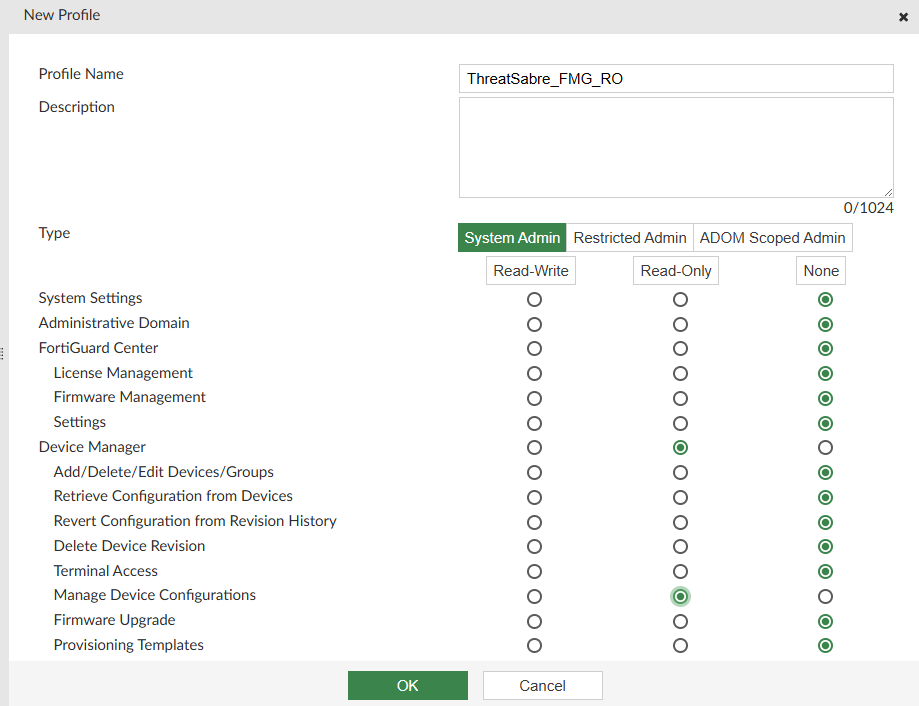
Step 1: Create a Read-Only Admin Profile
-
Navigate to System Settings > Admin > Profile.
-
Click Create New.
-
Profile Name:
ThreatSabre_FMG_RO. -
Type: Set to System Admin.
-
Set the Device Manager > Retrieve Configuration from Devices permissions to Read. Set all other permissions to None.
-
Click OK.
Step 2: Create the REST API User
-
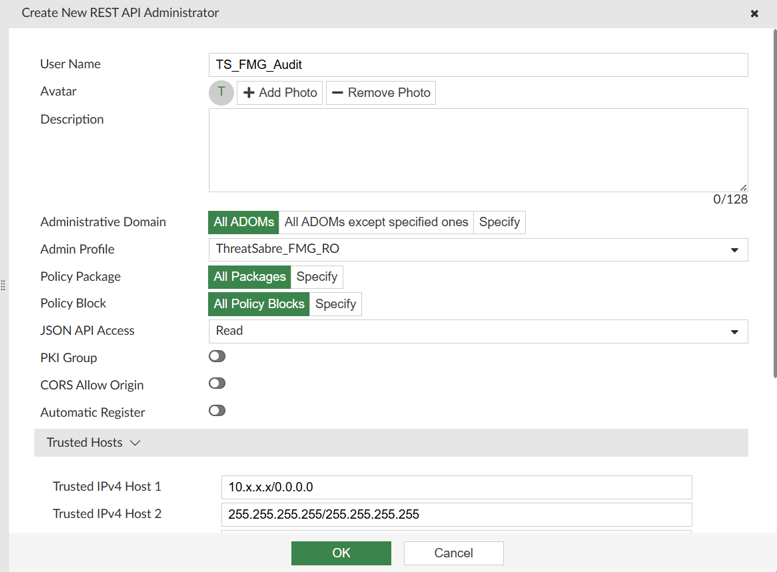
Navigate to System Settings > Admin > Administrator.
-
Click Create New and select REST API Admin.
-
User Name:
TS_FMG_Audit. -
Admin Profile: Select
ThreatSabre_FMG_RO. -
Trusted Hosts: Add the IP of your ThreatSabre Agent host to ensure the API can only be called from your Agent Virtual Machine. (e.g.,
10.x.x.x/255.255.255.255). -
Click OK.
- Copy the Token: A pop-up window will display the API Key.
In some cases this pop-up will not appear. After creating the user, edit the newly created user and click the Regenerate option under Regenerate API Key.
FortiManager will never show this key again. If you lose it, you must regenerate it.
Method 2: Command Line Interface (CLI)
Use these commands to deploy the read-only system profile and REST API User. Replace <Agent_IP> in the user configuration with the IP address of your ThreatSabre Agent host.
1. Create the Profile
# Enter the administrator profile configuration
config system admin profile
    edit "ThreatSabre_FMG_RO"

        # Profile Identity
        set type system                   # Define as a system-wide profile
        set scope global                  # Grant visibility across all ADOM

        # Device Manager & Operations
        set device-manager read           # Base Device Manager access
        set device-config read            # View managed device configs
    next
end
Running the get command within the profile context is the best way to verify that every attribute has been registered by the FortiManager.
config system admin profile
    edit "ThreatSabre_FMG_RO"
    get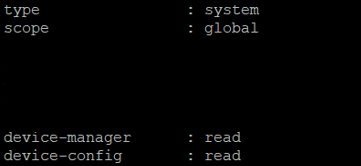
2. Create the User & Assign Trusted Host
# Enter the system administrator user configuration context
config system admin user
    # Create or edit the specific audit service account
    edit "TS_FMG_Audit"
        # Identify this account as a REST API type (disables GUI/Console login)
        set user_type api

        # Link the user to the granular read-only profile created previously
        set profileid "ThreatSabre_FMG_RO"

        # Grant visibility to all Administrative Domains (ADOMs)
        set adom-access all

        # Set the JSON-RPC permission level to 'read'
        set rpc-permit read

        # Security: Restrict API access to the ThreatSabre Agent host IP
        set trusthost1 <Agent_IP> 255.255.255.255
    next
end
Running the get command within the user context is the best way to verify that every attribute has been registered by the FortiManager.
config system admin user
    edit "TS_FMG_Audit"
    get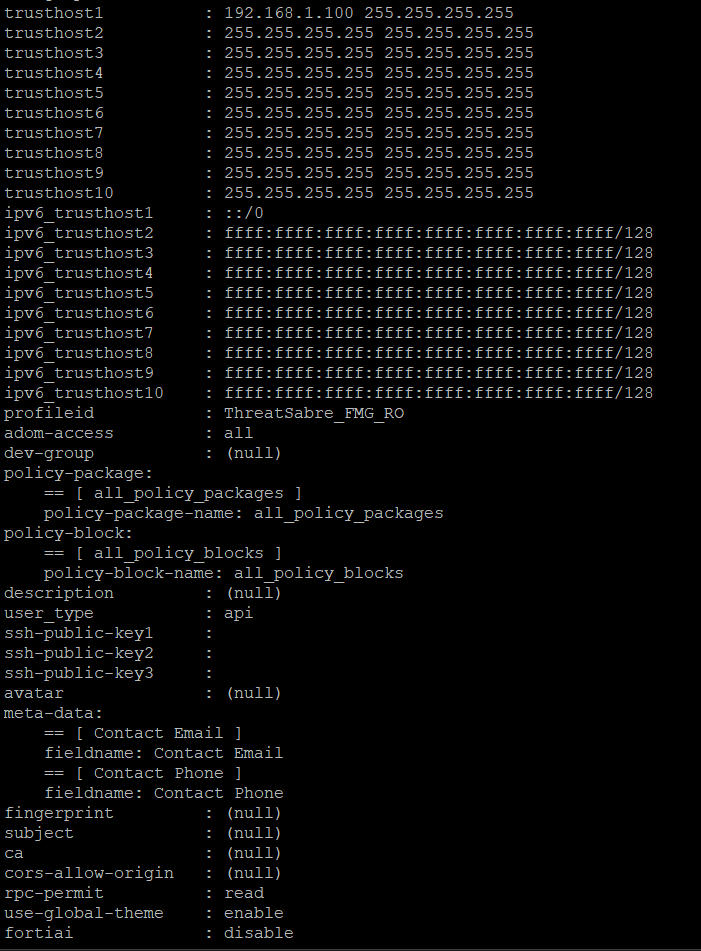
3. Generate the API Token
You must manually trigger the key generation to retrieve it via CLI:
execute api-user generate-key TS_FMG_Audit