Onboarding wizard
Install a ThreatSabre Agent, connect an Agent Device, and onboard Fortinet devices into ThreatSabre.
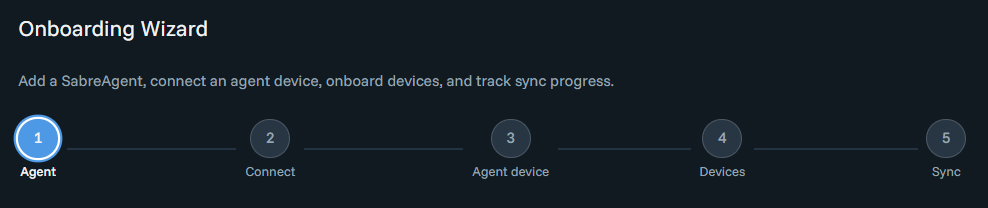
Use the Onboarding wizard to register a ThreatSabre Agent (Agent for short), connect it to an Agent Device (FortiManager, FortiManager Cloud, or FortiGate), select devices to bring into the platform, and track initial sync progress.
Who can use it
You need permission to run onboarding for your organization (the ability to create agents and complete this flow). If you do not see the wizard in the sidebar, ask an administrator to grant access.
Before you start
- ThreatSabre Agent installation — Plan to install the Agent on a host that can reach your Fortinet management APIs and the ThreatSabre service. Follow the ThreatSabre Agent installation guide.
- Agent Device API access — For each device type, create a read-only API user with the right permissions. See Obtaining API credentials for an overview, and use the guide that matches the device:
- FortiGate: Create API User on FortiGate
- FortiManager: Create API User on FortiManager
- FortiManager Cloud: Create API User on FortiManager Cloud
We recommend using FortiManager or FortiManager Cloud as the Agent Device when you have one available, so one connection covers many firewalls. If you do not use FortiManager, you can register each FortiGate as its own Agent Device instead; that path works but is usually more time-consuming because you repeat connection setup per firewall.
Open the wizard
Open Onboarding wizard from the sidebar. (You may also see links from the dashboard or Agents area; the sidebar is the main entry point.)
Step 1 — Agent
Choose how to proceed:
- Use an existing ThreatSabre Agent — Select it from the list, then continue.
- Create a new ThreatSabre Agent — Enter a name, select ThreatSabre Agent as the type, then create the Agent.
ThreatSabre Agent is currently the only available type. ThreatSabre Agent Cloud will be added as an additional option in the near future.
You will move to connection setup next.
Step 2 — Connect Agent
After a new Agent is created, the wizard shows a registration token.
Copy and store the token before you leave this step. It is only shown once. If you lose it, you can reset the token from the Agents menu.
- Copy the token and configure the Agent using the ThreatSabre Agent installation guide.
- Wait until the Agent reports as online. The wizard checks status automatically every few seconds.
If connection takes longer than usual, the wizard may show a notice after about a minute and a half; it stops waiting after about three minutes. If the Agent stays offline, verify installation and network path, then use Start over or return to agent management and try again.
Step 3 — Agent Device
An Agent Device is the FortiManager, FortiManager Cloud instance, or FortiGate that the Agent contacts over the API so ThreatSabre can collect data for analysis.
When the Agent is online, you can:
- Use an existing Agent Device — Select it and continue, or
- Register a new Agent Device — Enter hostname or address, device type, API credentials, and certificate options as prompted. Use the API user guides linked above for your device type.
After you continue, the wizard waits for the Agent to reach the device and finish discovery. This often completes within about 30–90 seconds after the Agent is online. If something fails, the wizard explains common causes (for example network reachability, wrong device type, incorrect credentials, or hostname). You can retry the connection or recreate the Agent Device with updated details.
Step 4 — Choose devices
The wizard lists devices that are not yet onboarded, for the management VDOM, discovered through the Agent Device you connected.
- Select the devices to onboard. You can onboard up to 1,000 devices in a single batch; if you exceed that, deselect some devices before continuing.
- Optionally assign groups to organize devices; this is optional and can be refined later as your group documentation evolves.
- Click Onboard selected.
If no devices appear, the wizard searches for new inventory for a few minutes. If nothing shows up after that, confirm Agent Device discovery and API access, then try again later.
Step 5 — Sync progress
Sync has two parts:
- Polling — ThreatSabre has received information from the device.
- Processing — Analysis of that device has finished. When both are complete, the device is available across the platform.
For smaller batches, you may see per-device polling and processing indicators. For large batches, the wizard may show overall counts instead of every row.
You can leave the wizard before every device finishes; remaining work continues in the background.
When you want to check status later, open the Inventory screen.
Start over
Start over appears on several steps. It clears the wizard state so you can begin again from Step 1 (for example after a lost token or a failed connection).
Finish
From the final step you can return to the Dashboard or start over. Use Inventory for ongoing visibility into devices you onboarded.
Onboarding Overview
Step-by-step guide to onboarding with ThreatSabre, from Agent Token creation and API user setup to device inventory and dashboard access.
ThreatSabre Agent
Overview of the ThreatSabre Agent, a lightweight Linux broker that connects your Fortinet infrastructure to the ThreatSabre platform via outbound HTTPS.